

FA-VA6 Screenshot Application
Screenshots of the FA-VA6 under Windows, macOS and Linux
For each of the common operating systems Windows, macOS and Linux a command line program (CLI) is available under Downloads, which can be used to capture and save screenshots from a connected FA-VA6 with firmware version 2.0 or later.
This also makes it easy to document measurement results: for example, multi-frequency and TDR measurements can be stored in the FA-VA6, later recalled and saved as screenshots via PC using this program. Screenshots are also very well suited for presenting and discussing measurement results in internet forums and discussion groups.
Operation under Windows
After
downloading the program "FA-VA6_Screenshot_Tool_1-0_Windows_CLI.exe" it can either be started directly by double-clicking, or from a command prompt window.
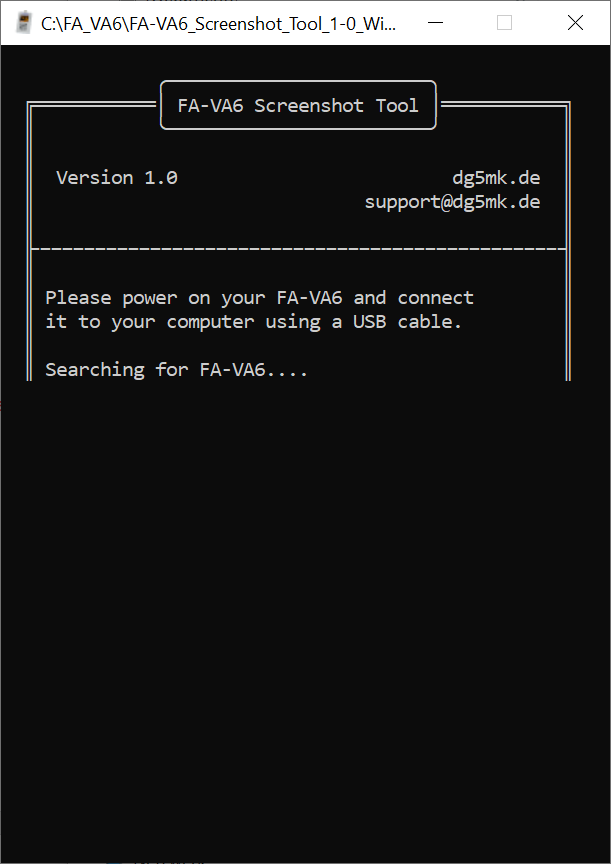
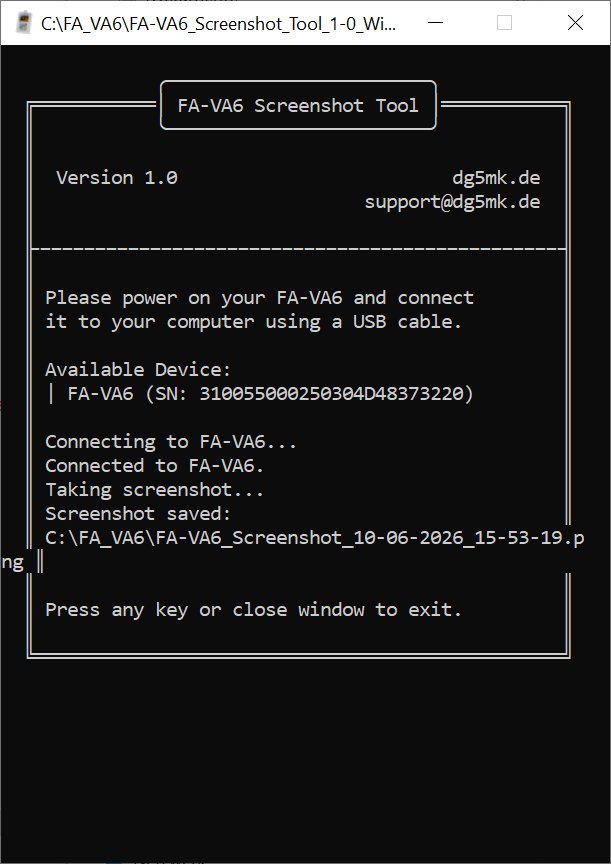
The program then actively searches for a connected FA-VA6. As soon as the FA-VA6 is connected to the PC via a USB cable or is already connected, it is automatically detected and a screenshot is taken immediately. The screenshot is saved in PNG format, by default in the same directory as the program. The save path is always displayed.
An alternative method is to start the program from a command prompt window.
A command prompt window can be opened by entering "cmd" in the taskbar search function.
Inside the command prompt window, the program can be started by entering the full path, for example with "C:\Users\Michael\Downloads\FA-VA6_Screenshot_Tool_1-0_Windows_CLI.exe".
This also makes it possible to specify an alternative save path and file name: the path and name of the file are simply entered after a space following the program name.
Likewise help with all available options and examples can be displayed by adding "-h" or "--help".
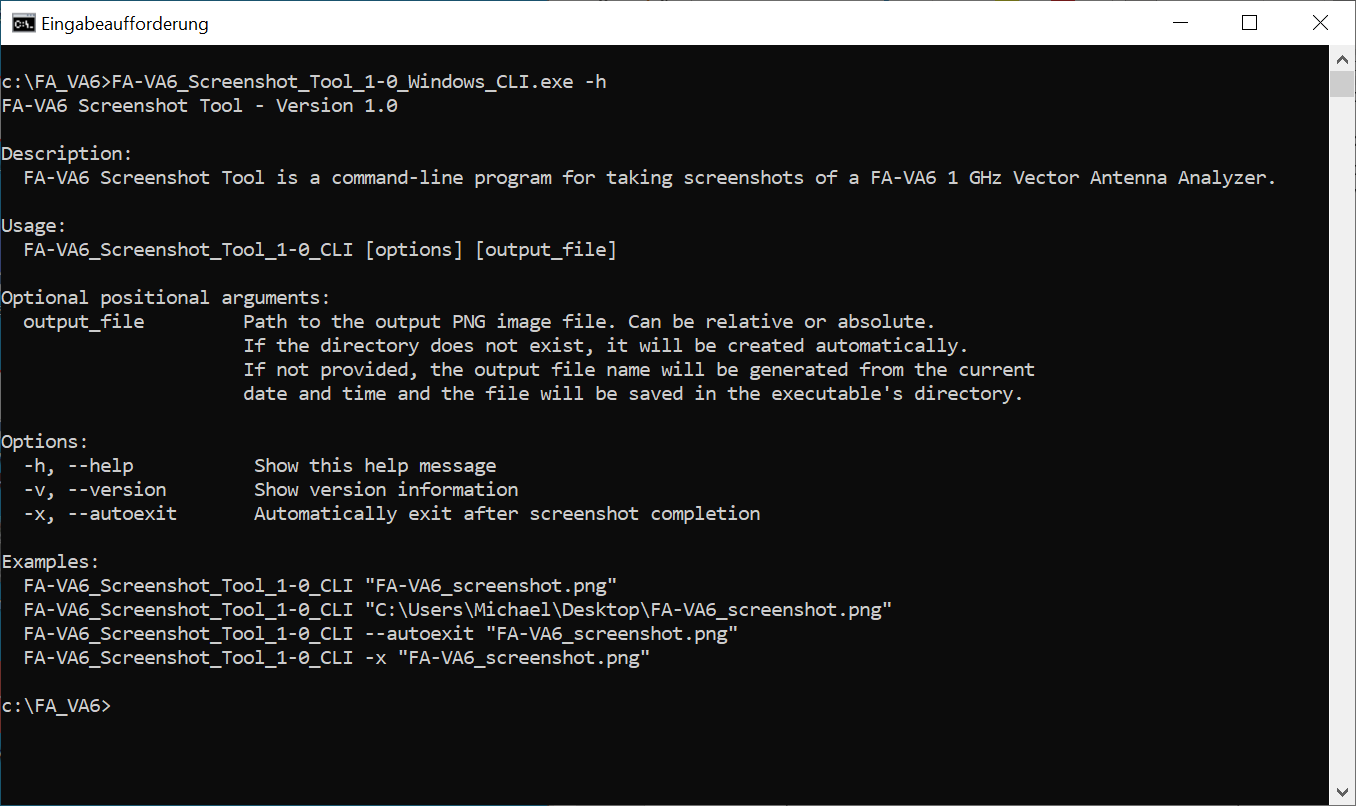
The user also has the option of integrating the creation of screenshots into their own workflows or programs, for example into batch processing (batch programs).
Operation under macOS
For the macOS operating system the program "FA-VA6_Screenshot_Tool_1-0_macOS_CLI.tar.gz" can be downloaded and used.
After downloading the archive must be extracted in the Downloads folder by double-clicking it. The program, now extracted next to the archive, can be started with a double-click. macOS may initially block execution with a warning about an unknown program; this message must be confirmed with "Done". In the settings (gear app), under "Privacy & Security", quite far down, there is the option "Open anyway". After confirming twice with "Open anyway" the program can then be executed.
The further procedure corresponds to that under Windows, see above.
Operation under Linux
For the Linux operating system the program "FA-VA6_Screenshot_Tool_1-0_Linux_CLI.tar.gz" can be downloaded and used.
After downloading the archive must be extracted in the Downloads folder by double-clicking it. The program is extracted next to the archive; however it cannot be started by double-clicking, but only via the console. To do this a terminal must be opened, then the Downloads folder must be navigated to and the program must be started with a preceding "./".
Depending on the Linux version an error message may appear stating that the connection to the attached FA-VA6 is not possible, because the user does not have the permissions to access the serial interface to the FA-VA6. The message provides possible solutions and the necessary commands: either run the program once as the dialout user, or add the current user to the dialout group. Alternatively, running the program once as superuser with "sudo" is also possible.
The further procedure corresponds to that under Windows, see above.